On this page
Labels, report defaults, and exports
This guide separates lab-adjustable output preferences from Clearline-managed report/export implementation.
What your team can manage#
Laboratory administrators may maintain:
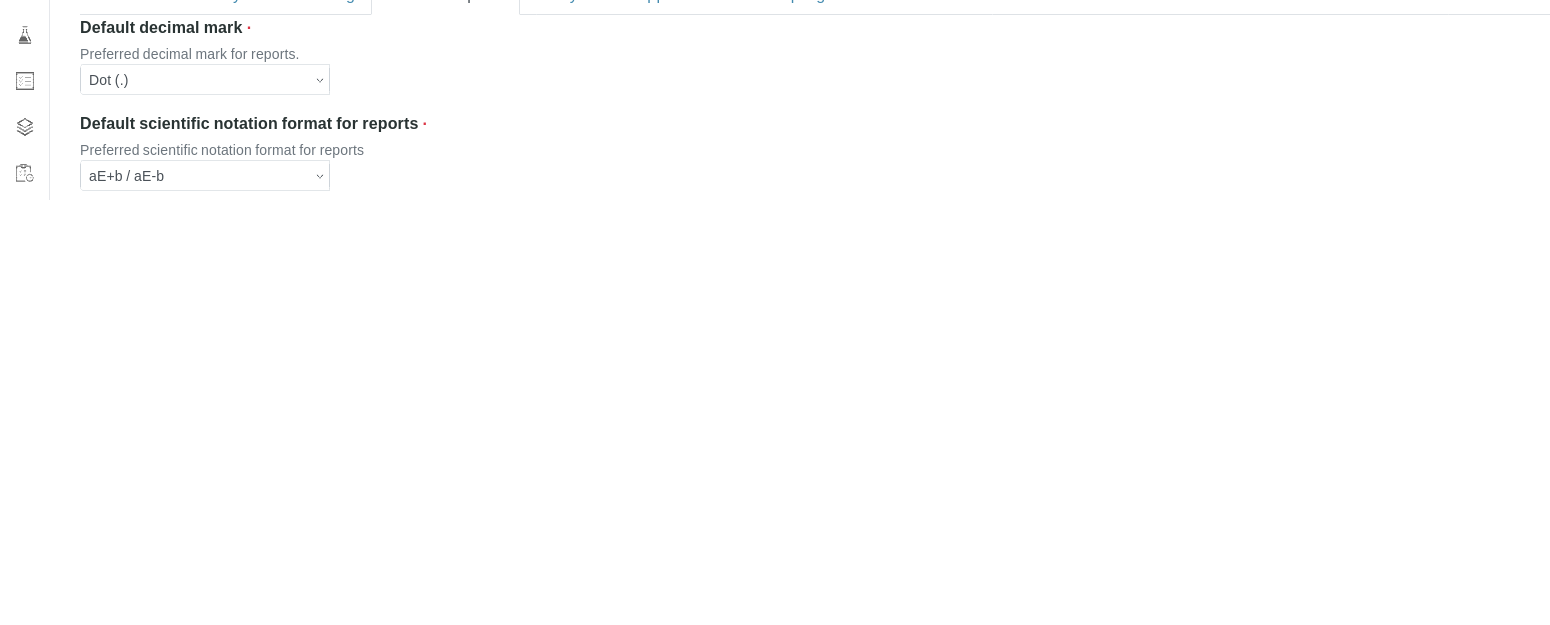
- Default decimal mark and scientific notation preference for result display/report output.
- Minimum result count used for QC statistics, when lab policy allows.
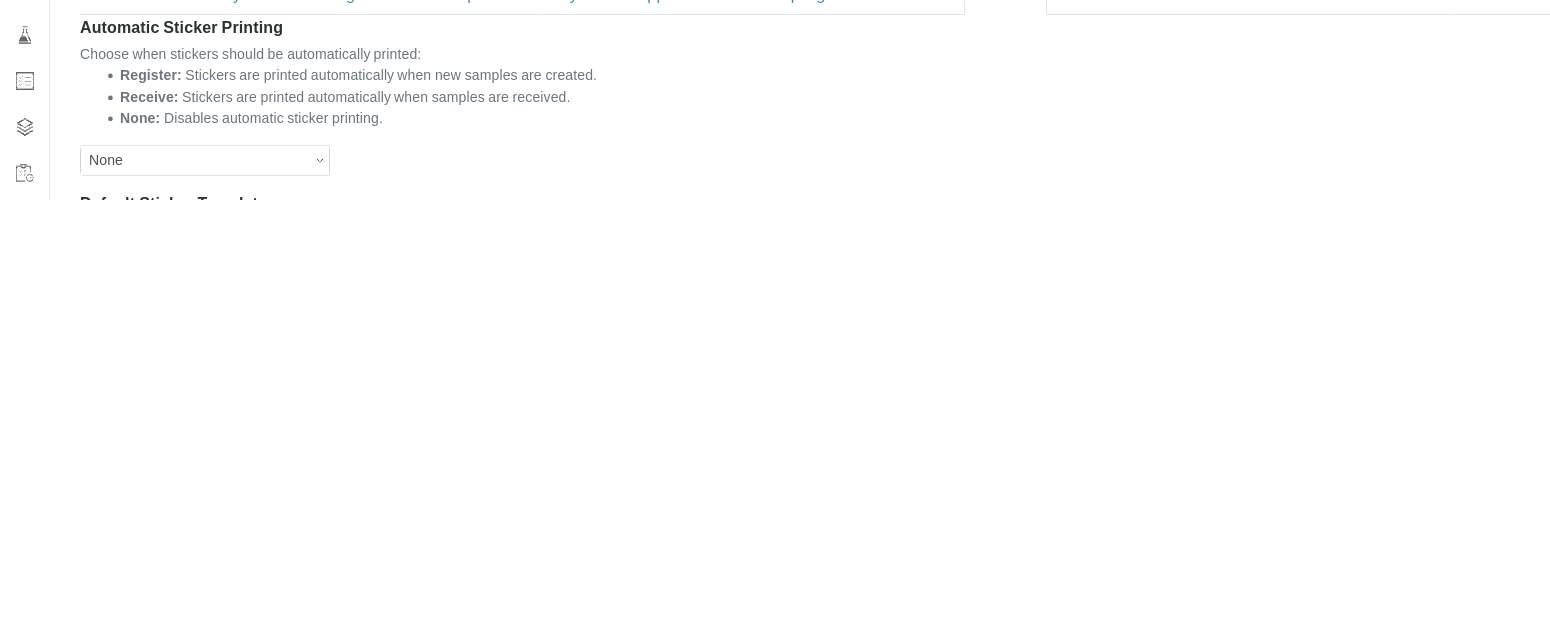
- Automatic label/sticker printing trigger.
- Default label/sticker template and number of copies, if the desired template already exists.
- Manual list exports from screens where the Export button is enabled.
Clearline-managed#
Clearline manages:
- Custom report templates and certificate/report package layouts.
- Client-specific report defaults, logos, appendices, and chain-of-custody packaging.
- EDD, CSV, Excel, XML, API, and instrument export schemas.
- New label/sticker templates or printer-specific changes.
- Any change requiring deployment or code/configuration outside the normal admin UI.
Update report-result preferences#
- Open System Setup.
- Open Results Reports.
- Review decimal mark, scientific notation format, and QC statistics threshold.
- Save only if the change is approved by lab management.
- Preview or generate a draft report output before relying on the setting for routine reporting.
Update label/sticker defaults#
- Open System Setup.
- Open Sticker.
- Select when labels should print automatically: never, during registration, or during receiving.
- Select the default template and number of copies.
- Save.
- Print a test label before relying on the setting for routine label printing.
Exports#
Use screen-level Export buttons where they are enabled for your role and the current list view. Exports depend on the records visible in the list, current filters, and tenant-specific export configuration. Open a Clearline Support ticket for custom export schemas, recurring exports, EDD packages, or API/instrument integrations.