Worksheets and batches
Worksheets and batches organize related work for analysis. Use them to group assigned analyses, coordinate analyst or instrument work, and move results through the lab's review process.
Open the worksheets area#
- From the main navigation, open Worksheets.
- Review available filters and list columns.
- Use this area to find work assigned to analysts, instruments, or templates once the lab has active work.
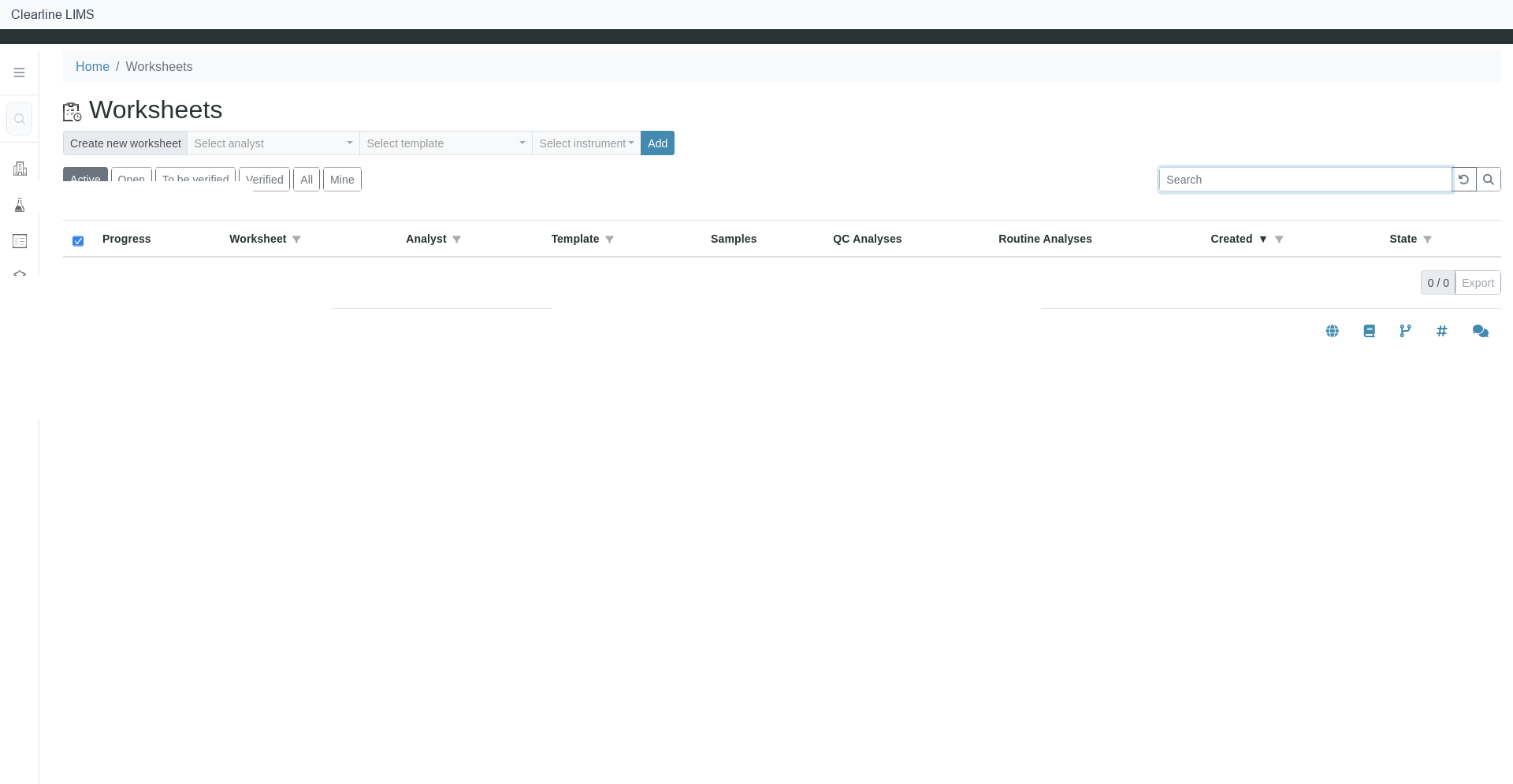
Worksheet and batch actions depend on tenant configuration, available samples, assigned analyses, templates, instruments, and role permissions.
Create or use a worksheet#
Availability depends on your tenant configuration, enabled modules, and configured lab data. If you do not see the option described here, contact Clearline Support.
Typical workflow after tenant setup:
- Open the worksheets area.
- Select the create worksheet action.
- Choose analyst, template, instrument, or other lab-required settings.
- Add eligible samples or analyses.
- Save the worksheet.
- Enter or review results according to role permissions.
This step requires configured sample data, analysis assignment, or worksheet template to be set up in your tenant.
Use batches#
Availability depends on your tenant configuration, enabled modules, and configured lab data. If you do not see the option described here, contact Clearline Support.
Typical workflow after tenant setup:
- Open the batches area.
- Create or open a batch.
- Add eligible samples.
- Use the batch to coordinate related work or reporting according to local procedure.
This step requires configured samples or batch data to be set up in your tenant.