Dashboard & Navigation
The dashboard gives lab staff a quick view of operational load: samples waiting to be received, results pending, samples awaiting verification, reports ready to publish, and open worksheets.
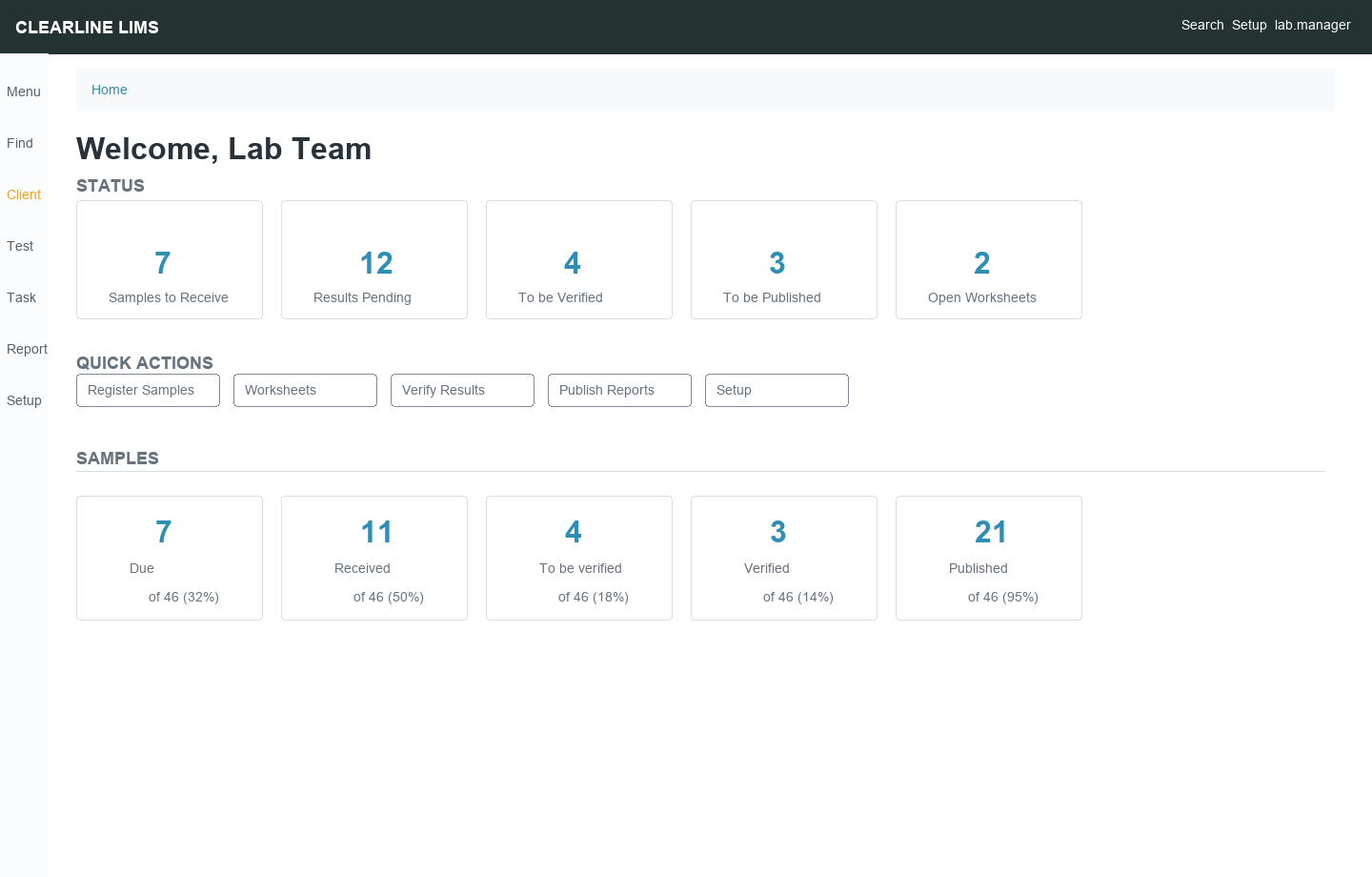
Listing Pages
Most modules use a common listing pattern:
| Control | Use |
|---|---|
| Status tabs | Switch between Active, Inactive, Due, Received, Verified, Published, or similar states |
| Search box | Search within the current listing |
| Column menu | Show, hide, and reorder columns where supported |
| Row checkboxes | Select records for bulk actions |
| Export | Download the currently visible listing data |
Record Pages
A record page usually includes:
| Section | Example |
|---|---|
| Header | Sample ID, client name, current state |
| Tabs | View, Manage Analyses, Published Results, Invoice, Audit Log |
| Field grid | Client, contact, sample type, dates, sample point, specification |
| Child tables | Analyses, worksheets, partitions, reports, attachments |
| Actions | Receive, Submit, Verify, Retract, Publish, Invalidate, depending on state and role |
Search and Navigation Tips
Use breadcrumbs instead of the browser back button when moving between clients, samples, worksheets, and setup objects. If you filtered a list and opened a record, the breadcrumb takes you to the parent area; the browser back button may return you to a stale filtered view.
Use direct Sample IDs when communicating with support. A screenshot plus Sample ID is usually enough for support to locate the exact record.